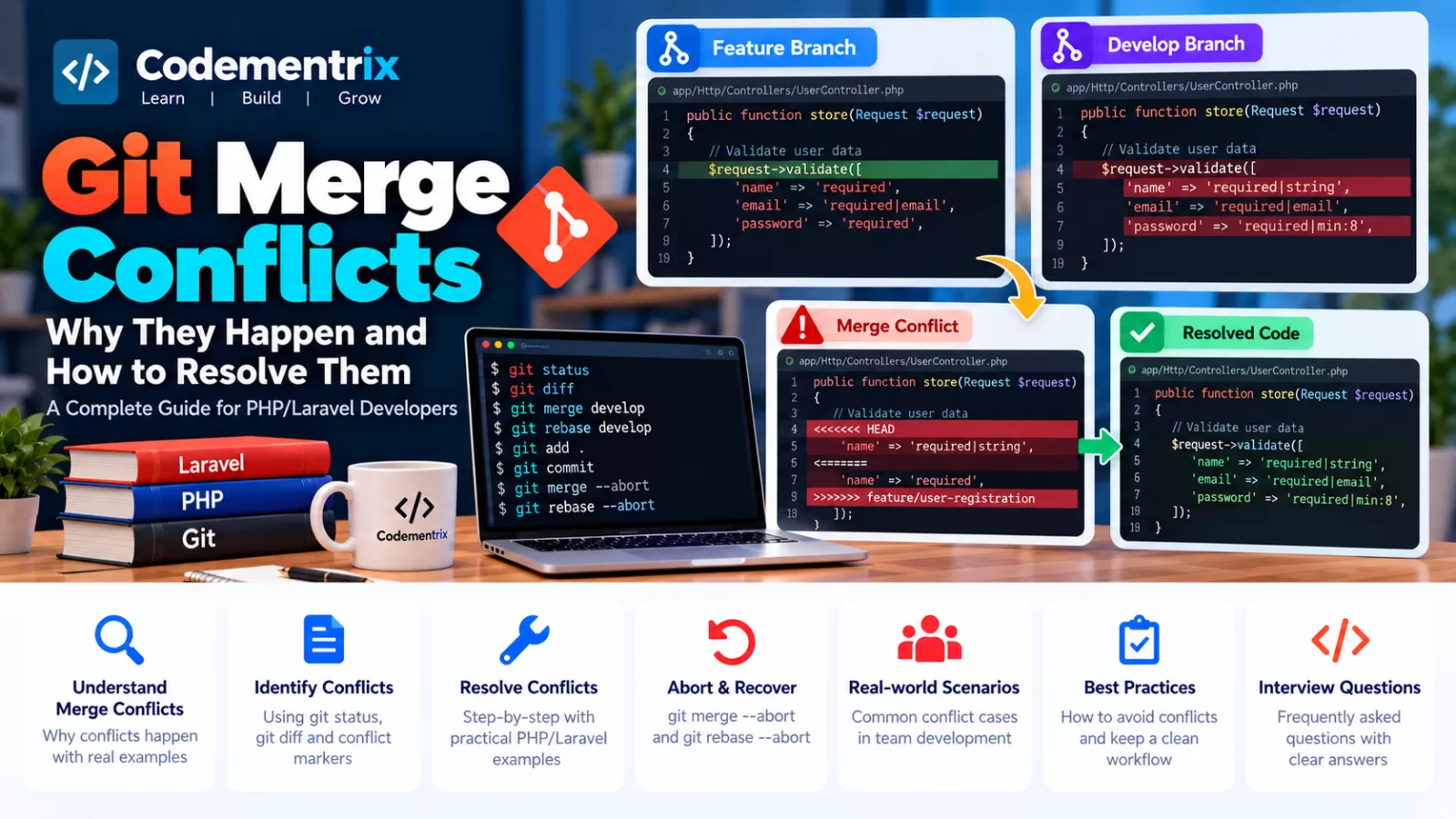
Git Merge Conflicts: Why They Happen and How to Resolve Them
If you work as a PHP or Laravel developer, sooner or later you will encounter a Git merge conflict.
A merge conflict is not necessarily a Git error. It means Git has found changes that it cannot safely combine automatically, so a developer needs to decide what the final code should be.
For example, two developers may modify the same Laravel controller:
Developer A
    ↓
feature/customer-api
    ↓
UserController.php


Developer B
    ↓
develop
    ↓
UserController.php
When Git tries to combine those changes, it may not know which version should remain.
That is when a conflict occurs.
In this article, we will learn:
- What a Git merge conflict is
- Why conflicts happen
- How to identify conflicts
- What Git conflict markers mean
- How to resolve conflicts step by step
- How to resolve Laravel/PHP conflicts
- How to resolve rebase conflicts
- How to abort a merge or rebase
- How to prevent unnecessary conflicts
- Common Git conflict interview questions
Table of Contents
- What is a Git merge conflict?
- Why do merge conflicts happen?
- Conflict caused by changing the same lines
- Can different lines cause conflicts?
- Simple Git conflict example
- Understanding conflict markers
- How to identify conflicted files
- Using git diff to inspect conflicts
- How to resolve a merge conflict
- Laravel merge conflict example
- How to decide which code to keep
- Stage the resolved files
- Complete the merge
- How to abort a merge
- How to resolve a rebase conflict
- How to abort a rebase
- Ours vs theirs
- File deleted vs modified conflicts
- Lock files and dependency conflicts
- Laravel migration conflicts
- .env and configuration conflicts
- How to reduce merge conflicts
- Real-world Laravel scenarios
- Git conflict interview questions
- Conflict command cheat sheet
- Conclusion
1. What is a Git Merge Conflict?
A Git merge conflict occurs when Git cannot automatically combine changes from two different lines of development.
Git is very good at combining changes when the affected parts of files are independent.
However, if two branches make incompatible changes to the same part of a file, Git needs a developer to decide what the final version should be.
Simple Example
Suppose the original Laravel code is:
return response()->json([
    'message' => 'Login successful'
]);
Developer A changes it to:
return response()->json([
    'message' => 'Welcome back'
]);
Developer B changes the same line to:
return response()->json([
    'message' => 'User logged in successfully'
]);
Git cannot automatically decide which message the application should use. Therefore, a conflict can occur.
2. Why Do Git Merge Conflicts Happen?
The most common reason is that two branches modify overlapping parts of the same file.
Common situations include:
- Two developers modify the same lines.
- One developer modifies code while another deletes it.
- Two branches make incompatible structural changes.
- A feature branch becomes very old compared with the target branch.
- Developers modify the same configuration or dependency files.
- Large refactoring overlaps with feature development.
A conflict is therefore usually a code integration problem, not simply a command problem.
3. Conflict Caused by Changing the Same Lines
This is the easiest type of conflict to understand.
Suppose both developers modify the same Laravel method:
public function store(Request $request)
{
    // validation
}
Developer A changes validation to:
$request->validate([
    'name' => 'required',
    'email' => 'required|email',
]);
Developer B changes the same section to:
$request->validate([
    'name' => 'required|string',
    'email' => 'required|email',
    'password' => 'required|min:8',
]);
Git cannot automatically determine which validation rules should be used.
The developer must understand the application requirement and combine or choose the correct code.
4. Can Different Lines Cause Conflicts?
Yes, although Git can often merge independent changes automatically.
For example, one developer changes the beginning of a class while another changes a nearby section.
If Git can determine that the changes do not overlap, it may merge them automatically.
However, when changes affect surrounding context or the structure of the file in incompatible ways, a conflict may still occur.
The important lesson is:
A merge conflict occurs when Git cannot confidently determine the correct combined result.
5. Simple Git Merge Conflict Example
Let's create a simple scenario.
Current branch
develop
Feature branch
feature/login
Both branches modify:
app/Http/Controllers/LoginController.php
Now you run:
git switch develop

git merge feature/login
Git may respond with a conflict message similar to:
Auto-merging app/Http/Controllers/LoginController.php
CONFLICT (content): Merge conflict in app/Http/Controllers/LoginController.php
Automatic merge failed; fix conflicts and then commit the result.
The merge is paused.
Git expects you to resolve the conflicted file before completing the merge.
6. Understanding Git Conflict Markers
When Git cannot automatically resolve a conflict, it inserts conflict markers into the affected file.
For example:
<<<<<<< HEAD
return response()->json([
    'message' => 'Login successful'
]);
=======
return response()->json([
    'message' => 'User logged in successfully'
]);
>>>>>>> feature/login
There are three important markers.
1. <<<<<<< HEAD
This marks the beginning of the version from the branch you currently checked out when the merge started.
2. =======
This separates the two versions.
3. >>>>>>> feature/login
This marks the version coming from the branch being merged.
The conflict markers are not valid application code and must be removed when the conflict is resolved.
7. How to Identify Conflicted Files
The first command you should normally run after Git reports a conflict is:
git status
Git will show information about the merge and identify files that need resolution.
For example:
On branch develop

You have unmerged paths.

Unmerged paths:
    both modified:
        app/Http/Controllers/LoginController.php
This tells you which files need attention.
Important Interview Point
If an interviewer asks: "How do you identify merge conflicts?"
A good answer is:
"I first run git status to identify unmerged files, then inspect the conflict using the file itself or git diff before resolving the code."
8. Using git diff to Inspect Conflicts
You can use:
git diff
to inspect the changes involved in the merge.
During a conflict, Git can show unmerged sections that help you understand what changed.
Another useful command is:
git diff --check
This can help detect whitespace errors and conflict-marker-related issues before completing the merge.
9. How to Resolve a Git Merge Conflict
The general process is:
1. Identify conflicted files
2. Open the files
3. Understand both versions
4. Decide the correct final code
5. Remove conflict markers
6. Test the code
7. Stage the resolved files
8. Complete the merge
Let's see the complete process.
Step 1: Check status
git status
Step 2: Open the conflicted file
For example:
app/Http/Controllers/LoginController.php
Step 3: Find conflict markers
<<<<<<< HEAD
...
=======
...
>>>>>>> feature/login
Step 4: Decide the correct code
You may keep the current version, the incoming version, or combine both.
Step 5: Remove the conflict markers
The final code should contain only valid PHP/Laravel code.
Step 6: Run tests
php artisan test
Step 7: Stage the resolved file
git add app/Http/Controllers/LoginController.php
Step 8: Check status
git status
The file should no longer be listed as unmerged.
Step 9: Complete the merge
git commit
The merge is now completed.
10. Complete Laravel Merge Conflict Example
Let's use a realistic Laravel example.
Original Code
public function store(Request $request)
{
    $request->validate([
        'name' => 'required',
        'email' => 'required|email',
    ]);

    return response()->json([
        'message' => 'User created'
    ]);
}
Developer A — develop branch
Adds string validation:
$request->validate([
    'name' => 'required|string',
    'email' => 'required|email',
]);
Developer B — feature/user-registration
Adds password validation:
$request->validate([
    'name' => 'required',
    'email' => 'required|email',
    'password' => 'required|min:8',
]);
When the branches are merged, Git may produce:
<<<<<<< HEAD
$request->validate([
    'name' => 'required|string',
    'email' => 'required|email',
]);
=======
$request->validate([
    'name' => 'required',
    'email' => 'required|email',
    'password' => 'required|min:8',
]);
>>>>>>> feature/user-registration
How should we resolve it?
Instead of blindly choosing one side, understand the requirements.
If the application needs both changes, the final code could be:
$request->validate([
    'name' => 'required|string',
    'email' => 'required|email',
    'password' => 'required|min:8',
]);
Then remove all conflict markers.
Run:
php artisan test
Then:
git add app/Http/Controllers/UserController.php

git commit
This is an important point: resolving a conflict is not simply choosing "ours" or "theirs". You should understand the business requirement and produce the correct final code.
11. How Do You Decide Which Code to Keep?
This is where developer judgment is important.
There are three common possibilities.
Option 1: Keep current branch changes
If the current branch contains the correct implementation, keep it.
Option 2: Keep incoming branch changes
If the incoming feature contains the correct implementation, use that.
Option 3: Combine both
Often, both developers made valid changes and the correct solution is to combine them.
For example:
Developer A:
Add string validation

Developer B:
Add password validation

Final:
Use both validations
This is why merge conflict resolution requires understanding the code and business requirements.
12. Stage the Resolved Files
After fixing a conflict, tell Git that the file has been resolved:
git add app/Http/Controllers/UserController.php
For multiple resolved files:
git add app/Http/Controllers/
Or, after carefully reviewing all changes:
git add .
Then check:
git status
13. How to Complete the Merge
After all conflicts are resolved and staged:
git commit
Git may open an editor containing a default merge commit message.
You can save it or provide an appropriate message.
Then verify:
git log --oneline --graph --all
14. How to Abort a Merge
Sometimes you start a merge and realize that the conflict is too complicated, or you want to approach the integration differently.
If the merge is still in progress:
git merge --abort
This attempts to return the repository to the state before the merge started.
Example
git switch develop

git merge feature/payment

# Conflict occurs

git status

# Decide to cancel the merge

git merge --abort
After aborting, inspect:
git status
Always verify your working tree before continuing.
15. How to Resolve a Rebase Conflict
Merge conflicts can also happen during a rebase.
Suppose:
git switch feature/payment

git rebase origin/develop
Git encounters a conflict.
First:
git status
Open the conflicted file and resolve the code.
Then stage it:
git add app/Services/PaymentService.php
Continue:
git rebase --continue
If another conflict appears, repeat the process.
git status

# Resolve conflict

git add <file>

git rebase --continue
16. How to Abort a Rebase
If you decide that you don't want to continue the rebase:
git rebase --abort
Git attempts to return the branch to its state before the rebase started.
This is useful when:
- The conflict is unexpectedly complex.
- You realize the wrong base branch was selected.
- You want to coordinate with another developer first.
- You decide a merge-based approach is more appropriate.
17. What Do "Ours" and "Theirs" Mean?
During conflict resolution, Git tools may refer to:
- Ours — the version associated with the current side of the operation.
- Theirs — the version associated with the incoming side.
The exact meaning can become confusing during rebases because the perspective of "current" and "incoming" differs from a normal merge.
For that reason, do not blindly choose "ours" or "theirs". First understand which code Git is presenting and which final behavior the application needs.
Example commands
In a normal merge, you may use:
git checkout --ours path/to/file.php

git checkout --theirs path/to/file.php
Modern Git also supports:
git restore --ours path/to/file.php

git restore --theirs path/to/file.php
Then stage the selected version:
git add path/to/file.php
Use these commands carefully because they replace the file with one side's version.
18. File Deleted vs Modified Conflicts
Not all conflicts look like two versions of the same lines.
For example:
- Developer A deletes a Laravel controller.
- Developer B modifies that same controller.
Git cannot automatically determine whether the final project should:
- Delete the controller
- Keep the controller with the modifications
- Replace it with another implementation
Run:
git status
Then inspect the change and make the correct decision based on the application's requirements.
19. Dependency and Lock File Conflicts
Laravel projects frequently use:
composer.json
composer.lock
package.json
package-lock.json
These files can also create conflicts.
Example
Developer A adds:
"laravel/framework": "..."
Developer B changes another dependency.
A conflict may occur in composer.json or composer.lock.
Do not randomly delete one side. First understand which dependencies the project actually requires.
After resolving composer.json, the team may regenerate the lock file using Composer according to the project's dependency-management process.
For example:
composer update
However, do not run a broad composer update blindly on a production project because it can update many dependencies. Follow the project's normal dependency workflow.
20. Laravel Migration Conflicts
Laravel developers may also encounter migration-related conflicts.
Suppose two developers create migrations with very similar timestamps:
database/migrations/
2026_10_03_100001_create_orders_table.php

2026_10_03_100002_add_status_to_orders.php
Git may not necessarily create a text conflict simply because both files are different, but problems can arise if two developers edit the same migration file or modify migration history in incompatible ways.
A good practice is to avoid modifying an already-shared migration unnecessarily. For an existing database schema change, a new migration is often safer than rewriting a migration that other environments may already have executed.
21. .env and Configuration Conflicts
The actual Laravel .env file should normally not be tracked in Git.
Instead, the project typically tracks:
.env.example
This greatly reduces the chance of developers creating Git conflicts around machine-specific environment values.
For example, developers may have different:
DB_HOST
DB_DATABASE
DB_USERNAME
DB_PASSWORD
APP_URL
These values belong to the environment rather than the shared source code.
22. How to Reduce Git Merge Conflicts
You cannot completely eliminate conflicts in a collaborative project, but you can reduce unnecessary conflicts.
1. Keep feature branches reasonably short-lived
Long-running branches can diverge significantly from the target branch.
2. Keep your branch updated
Regularly integrate changes according to your team's workflow.
3. Communicate about shared files
If two developers are modifying the same major Laravel module, communication can prevent unnecessary duplicated work.
4. Make focused commits
Avoid combining unrelated changes in one commit.
5. Avoid unnecessary formatting changes
Changing indentation or formatting across an entire file while another developer is editing it can make conflicts much more difficult to resolve.
6. Use Pull Requests
Code review allows potential integration problems to be discovered earlier.
7. Test after resolving conflicts
php artisan test
A conflict-free merge does not automatically mean the resulting application behavior is correct.
23. Real-World Laravel Conflict Scenarios
Scenario 1: Two developers modify the same controller
Developer A:
feature/customer
Developer B:
feature/customer-validation
Both modify:
CustomerController.php
Solution:
git status

# Open file

# Resolve code

git add app/Http/Controllers/CustomerController.php

php artisan test

git commit
Scenario 2: One developer deletes a file
Developer A deletes:
OldPaymentService.php
Developer B modifies the same file.
When merging, Git needs a decision about whether the file should remain.
The developer should inspect the business requirement rather than blindly choosing one side.
Scenario 3: Rebase conflict
git fetch origin

git switch feature/payment

git rebase origin/develop
Conflict occurs:
git status
Resolve:
git add <resolved-file>

git rebase --continue
Or abort:
git rebase --abort
Scenario 4: You don't understand the conflict
Do not blindly delete code.
Instead:
- Read both versions.
- Check the related feature requirements.
- Look at recent commits.
- Ask the developer who made the change if necessary.
- Resolve the final behavior.
- Run tests.
This is much safer than simply selecting "ours" or "theirs".
24. Git Merge Conflict Interview Questions
Q1. What is a merge conflict?
A merge conflict occurs when Git cannot automatically combine changes from different branches and needs the developer to decide the correct final code.
Q2. Why do merge conflicts happen?
They commonly happen when two branches modify overlapping parts of the same file, or when one branch deletes something that another branch modifies.
Q3. How do you identify merge conflicts?
git status
You can then inspect the conflicted files and use:
git diff
to understand the changes.
Q4. What are Git conflict markers?
<<<<<<< HEAD
Current branch
=======
Incoming branch
>>>>>>> feature
They identify the two conflicting versions and the boundary between them.
Q5. How do you resolve a merge conflict?
A typical workflow is:
git status

# Edit conflicted files

git add <resolved-files>

git commit
Before committing, run appropriate tests.
Q6. What happens if you don't resolve a conflict?
The merge remains incomplete and Git will not consider the operation finished. The repository remains in a conflict-resolution state until you resolve the files, abort the operation, or otherwise complete it.
Q7. How do you abort a merge?
git merge --abort
Q8. How do you abort a rebase?
git rebase --abort
Q9. How do you continue a rebase after resolving a conflict?
git add <resolved-file>

git rebase --continue
Q10. What is the difference between merge conflict and rebase conflict?
The underlying problem is similar: Git cannot automatically combine changes. The difference is the operation being performed.
During a merge:
git merge feature
you resolve the conflict and complete the merge.
During a rebase:
git rebase develop
you resolve the conflict and then continue the rebase:
git rebase --continue
Q11. What are ours and theirs?
They refer to the two sides of a conflict, but their exact interpretation can depend on whether you are performing a merge or a rebase.
Always verify which side represents the code you intend to keep before using commands such as:
git restore --ours file.php

git restore --theirs file.php
Q12. Does Git automatically resolve every conflict?
No. Git can automatically merge many independent changes, but when it cannot determine a safe result, it pauses and requires manual resolution.
Q13. Is a merge conflict a Git error?
Not necessarily. A conflict is Git telling you that human judgment is needed to determine the correct combined result.
Q14. How can you prevent merge conflicts?
You cannot eliminate all conflicts, but you can reduce them by keeping branches reasonably short-lived, integrating changes regularly, avoiding unnecessary formatting changes, making focused commits, communicating about shared files, and using a consistent branching workflow.
Q15. What should you do after resolving a Laravel conflict?
Run appropriate tests and checks before completing the merge or rebase. For example:
php artisan test
You may also run relevant static analysis, linting, or project-specific checks.
25. Git Conflict Command Cheat Sheet
``` ```
| Command | Purpose |
|---|---|
git status |
Identify conflicted/unmerged files |
git diff |
Inspect changes |
git add file.php |
Mark resolved file as staged |
git commit |
Complete a merge |
git merge --abort |
Cancel a merge in progress |
git rebase --continue |
Continue a rebase after resolving a conflict |
git rebase --abort |
Cancel a rebase in progress |
git rebase --skip |
Skip the current rebase patch when appropriate |
git restore --ours file.php |
Restore the current side of a conflict |
git restore --theirs file.php |
Restore the incoming side of a conflict |
git diff --check |
Check for whitespace errors |
git log --graph --oneline --all |
Inspect branch history visually |
php artisan test |
Run Laravel tests after resolving code |
26. The Most Important Conflict Resolution Workflow
For interviews and real development work, remember this workflow:
Conflict occurs
      ↓
git status
      ↓
Identify conflicted files
      ↓
Open the files
      ↓
Understand both changes
      ↓
Remove conflict markers
      ↓
Write correct final code
      ↓
Run tests
      ↓
git add
      ↓
Complete merge/rebase
For Merge
git add <resolved-file>

git commit
For Rebase
git add <resolved-file>

git rebase --continue
27. Important Laravel Developer Tip
Never consider a conflict resolved simply because Git allows you to commit.
Git checks whether the textual conflict has been resolved. It does not know whether the resulting Laravel application behavior is correct.
For example, after resolving:
PaymentService.php
you should test the payment-related functionality.
php artisan test
If the project has specific tests:
php artisan test --filter=Payment
You should also manually test important application behavior when appropriate.
28. Quick Interview Answer
If an interviewer asks:
"How do you resolve a Git merge conflict?"
A concise professional answer is:
"First, I run git status to identify the conflicted files. Then I open each file and inspect the conflict markers to understand both versions. I decide the correct final code based on the application requirement, remove the conflict markers, run the relevant tests, and stage the resolved files with git add. For a merge I complete the operation with a commit; for a rebase I use git rebase --continue. If I need to cancel the operation, I use git merge --abort or git rebase --abort."
This demonstrates both the Git commands and the reasoning required to resolve a real conflict.
29. Conclusion
Git merge conflicts are a normal part of collaborative software development. They happen because multiple developers sometimes make changes that Git cannot safely combine automatically.
The most important thing is not to panic when a conflict appears.
Remember:
git status
        ↓
Find conflicted files
        ↓
Read both versions
        ↓
Understand the requirement
        ↓
Resolve the code
        ↓
Remove conflict markers
        ↓
Run tests
        ↓
git add
        ↓
Complete merge/rebase
For Laravel developers, always test the application after resolving conflicts. A conflict-free Git operation does not guarantee that the resulting business logic is correct.
Once you understand conflict markers, git status, git diff, git add, git merge --abort, and git rebase --continue, Git conflicts become much easier to handle in real projects and interviews.
What's Next?
In the next Codementrix Git article, we will cover another important interview topic:
Git Reset vs Revert vs Restore — Differences, Examples and When to Use Each
We will explain how to undo changes safely, including git reset --soft, --mixed, --hard, git revert, git restore, practical Laravel examples, and common interview scenarios.
Rate this article
No ratings yet. Be the first.
If this helped you, please leave a rating so the next reader knows.
Discussion
Questions and notes from readers. Comments appear after a short review.
No comments yet. Start the discussion.