Git Stash Explained: Save, Switch, Restore and Manage Changes
81 people viewed this
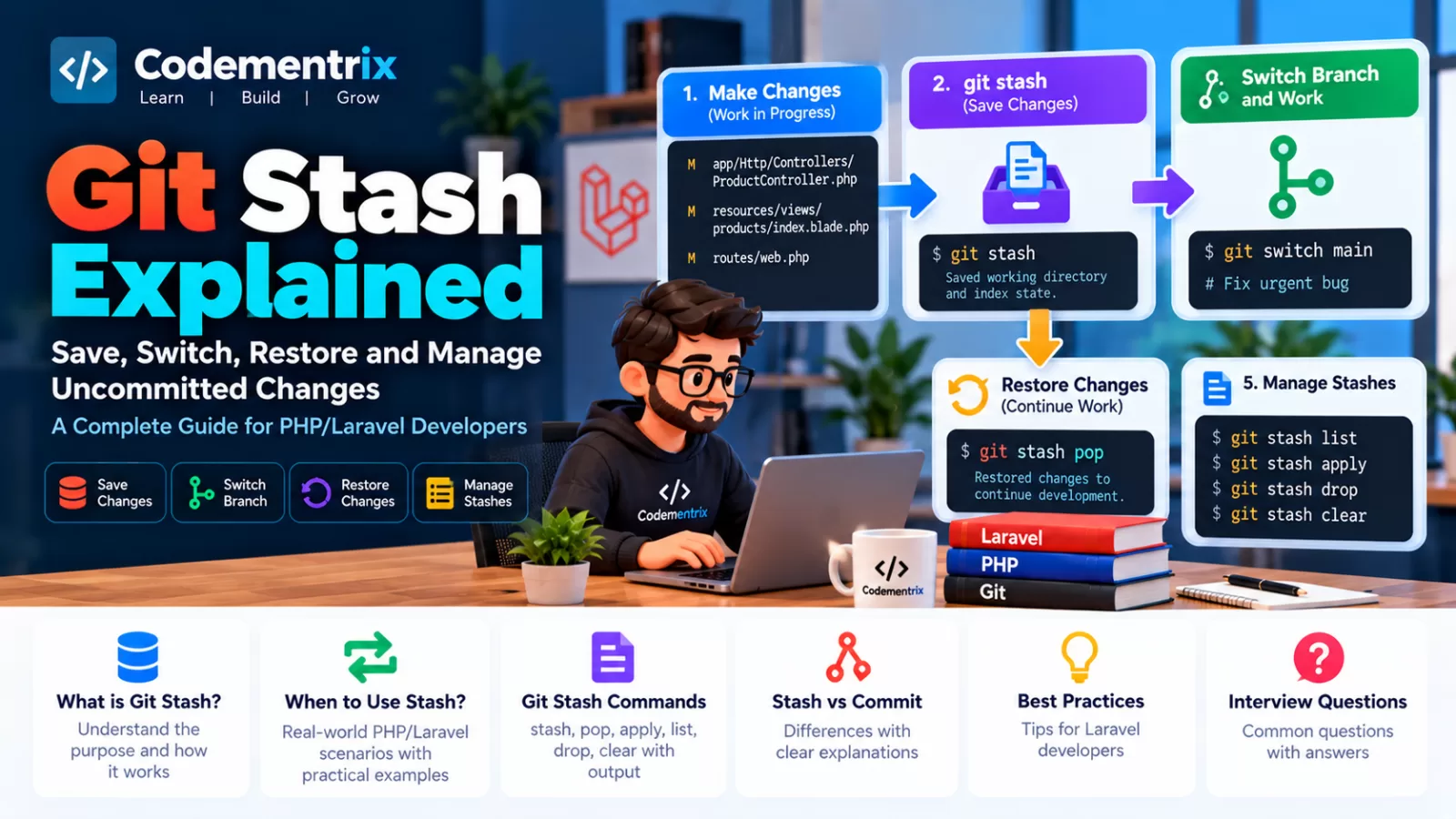
Git Stash Explained: Save, Switch, Restore and Manage Uncommitted Changes
Imagine you are working on a Laravel feature and suddenly your manager asks you to fix an urgent production bug.
Your current work is not finished, so you don't want to commit it yet.
But Git may prevent you from switching branches if your uncommitted changes would be overwritten.
What should you do?
This is where Git Stash becomes useful.
Working on feature
        ↓
Uncommitted changes
        ↓
git stash
        ↓
Working directory becomes clean
        ↓
Switch branch
        ↓
Fix urgent issue
        ↓
Return to feature
        ↓
git stash pop
        ↓
Continue development
Git stash allows you to temporarily save certain uncommitted changes without creating a normal commit, so you can clean your working tree and return to those changes later.
In this article, we will learn Git Stash from the basics with practical PHP/Laravel examples.
Table of Contents
- What is Git Stash?
- Why do developers use Git Stash?
- Basic git stash command
- What happens after git stash?
- git stash pop
- git stash apply
- stash pop vs stash apply
- git stash list
- git stash show
- Naming a stash
- git stash drop
- git stash clear
- git stash branch
- Stashing untracked files
- Stashing ignored files
- Stashing selected changes
- Complete Laravel example
- Handling stash conflicts
- Git Stash vs Git Commit
- Git Stash vs Git Reset
- Git Stash best practices
- Git Stash interview questions
- Git Stash cheat sheet
- Real-world Laravel workflow
- Conclusion
1. What is Git Stash?
Git Stash temporarily saves changes from your working directory and index so that you can return to a clean working tree.
The basic command is:
git stash
For example, suppose you are modifying:
app/Http/Controllers/ProductController.php
resources/views/products/index.blade.php
routes/web.php
Your work is incomplete.
Then you receive an urgent task.
Instead of committing unfinished code, you can run:
git stash
Git temporarily saves the changes and makes the working tree clean.
You can now switch branches and work on something else.
2. Why Do Developers Use Git Stash?
A common situation is:
You are working on:

feature/payment

        ↓

Manager asks:

"Please fix the production login issue."

        ↓

Your payment feature is incomplete.

        ↓

You don't want to commit unfinished code.

        ↓

git stash

        ↓

Switch to the required branch.
After finishing the urgent task, you can return to your feature branch and restore the stashed changes.
Git stash is therefore useful for temporarily putting work aside.
Common use cases
- Switching branches with unfinished work
- Handling an urgent bug
- Pulling or rebasing after temporarily saving local changes
- Keeping unfinished work out of the commit history
- Temporarily testing another branch
- Moving local work aside while investigating another problem
3. Basic git stash Command
The simplest command is:
git stash
You can also use:
git stash push
Both represent the same general operation: save eligible local modifications and clean the working tree.
Before stash
On branch feature/payment

Changes not staged for commit:
    modified: app/Services/PaymentService.php
    modified: routes/web.php
Run:
git stash
Then:
git status
The working tree should now be clean if all relevant changes were stashed.
4. What Happens After git stash?
Suppose you have:
feature/payment

Modified:
    PaymentService.php
    payment.blade.php
Run:
git stash
Git stores the changes in a stash entry.
Conceptually:
Working changes
      ↓
   git stash
      ↓
Stash storage
      ↓
Clean working directory
Your branch's existing commits do not change simply because you stashed your uncommitted work.
You can now switch branches:
git switch develop
and work on the other task.
5. What is git stash pop?
After completing the urgent task, return to your original branch:
git switch feature/payment
Then restore the latest stash:
git stash pop
This applies the stash and, if the application succeeds, removes that stash entry from the stash list.
Conceptually:
Stash
  ↓
git stash pop
  ↓
Changes restored
  ↓
Stash entry removed
Important
If applying the stash causes conflicts, Git may leave the stash entry in place so that you can resolve the conflict.
6. What is git stash apply?
git stash apply restores a stash without removing it from the stash list.
git stash apply
This is useful when you want to apply the same stash and potentially reuse it.
For example:
git stash list
You might see:
stash@{0}: WIP on feature/payment
stash@{1}: WIP on feature/customer
Apply a specific stash:
git stash apply stash@{1}
The stash remains available after applying it.
7. git stash pop vs git stash apply
``` ```
| Command | Restores changes? | Removes stash entry? |
|---|---|---|
git stash pop |
Yes | Normally yes, if application succeeds |
git stash apply |
Yes | No |
Simple way to remember:
POP
Apply + remove stash

APPLY
Apply + keep stash
8. What is git stash list?
If you have multiple stashes, use:
git stash list
Example:
stash@{0}: WIP on feature/payment
stash@{1}: WIP on feature/customer
stash@{2}: WIP on bugfix/invoice
The newest stash is normally at:
stash@{0}
The next one is:
stash@{1}
and so on.
Apply a specific stash
git stash apply stash@{2}
Pop a specific stash
git stash pop stash@{1}
9. What is git stash show?
You can inspect what a stash contains using:
git stash show
For more detailed differences:
git stash show -p
You can inspect a specific stash:
git stash show -p stash@{1}
This is useful before applying an old stash when you no longer remember exactly what it contains.
10. How to Give a Stash a Message
If you have multiple stashes, descriptive names are helpful.
Use:
git stash push -m "Payment API work"
Now:
git stash list
may show something similar to:
stash@{0}: On feature/payment: Payment API work
Another example
git stash push -m "Customer validation changes"
This is much easier to identify later than several generic WIP messages.
11. What is git stash drop?
If you no longer need a particular stash:
git stash drop stash@{0}
This removes that stash entry.
Be careful because dropping a stash removes it from the stash list.
Example
git stash list

git stash drop stash@{1}
12. What is git stash clear?
To remove all stash entries:
git stash clear
This is a destructive operation.
For example, if you have:
stash@{0}
stash@{1}
stash@{2}
stash@{3}
then:
git stash clear
removes all of them from the stash list.
Do not use this command unless you are sure you no longer need the stashed work.
13. What is git stash branch?
Sometimes a stash is difficult to apply to your current branch because the code has changed significantly.
You can create a new branch from the commit where the stash was originally created and apply the stash there:
git stash branch feature/recover-payment stash@{0}
This can be useful when a stash belongs to an older state of the project.
Conceptually:
Old working state
       ↓
     Stash
       ↓
git stash branch
       ↓
New branch based on stash's original context
       ↓
Stashed changes applied
If the stash is successfully applied and the command completes as expected, the stash entry may be removed.
14. How to Stash Untracked Files
By default, a basic stash focuses on tracked modifications.
Suppose you create a new Laravel file:
app/Services/PaymentService.php
and it is untracked.
To include untracked files:
git stash push -u
The -u option means:
--include-untracked
Example:
git stash push -u -m "Payment service work"
This is particularly useful when your feature contains newly created files that are not yet tracked.
15. How to Stash Ignored Files
If you also want to include ignored files:
git stash push -a
This corresponds to:
--all
Use this carefully.
Laravel projects often have ignored files and directories that you generally do not want to stash or share, such as generated or environment-specific content.
For normal development, -u is usually more appropriate when you only need to include untracked project files.
16. How to Stash Only Selected Changes
Sometimes you don't want to stash everything.
Git supports interactive patch stashing:
git stash push -p
Git will ask which changes or hunks should be stashed.
This is useful when a single file contains both:
- Changes you want to keep in your working tree
- Changes you want to temporarily stash
Example
app/Services/OrderService.php
Suppose you have:
- Completed order validation changes
- Unfinished payment changes
You may use:
git stash push -p
and select only the unfinished changes.
17. Complete Laravel Git Stash Example
Let's use a realistic Laravel development scenario.
Step 1: Start feature development
git switch feature/payment
You start modifying:
app/Services/PaymentService.php

app/Http/Controllers/PaymentController.php

resources/views/payment/index.blade.php
Check:
git status
You see:
modified:
    app/Services/PaymentService.php

modified:
    app/Http/Controllers/PaymentController.php

modified:
    resources/views/payment/index.blade.php
Step 2: Urgent production bug arrives
Your manager asks:
Fix the login issue immediately.
You don't want to commit the incomplete payment feature.
Step 3: Stash the payment work
git stash push -m "Payment feature in progress"
Step 4: Verify
git status
The working tree should now be clean, assuming all relevant changes were included.
Step 5: Switch branch
git switch develop
Or switch to the branch your team uses for the urgent fix:
git switch hotfix/login
Step 6: Fix the login problem
Make the necessary Laravel changes.
php artisan test
Step 7: Commit the hotfix
git add .

git commit -m "Fix login validation"
Step 8: Return to payment branch
git switch feature/payment
Step 9: View stash
git stash list
You may see:
stash@{0}: On feature/payment: Payment feature in progress
Step 10: Restore the work
git stash pop
Your unfinished payment work is back.
Step 11: Continue development
php artisan test
Then continue working on the feature.
18. What If git stash pop Causes a Conflict?
A stash is created from one state of your project, but the branch may have changed before you restore it.
For example:
Stash created:

PaymentService.php
        ↓
Stashed


Later:

PaymentService.php
        ↓
Changed by another commit


Then:

git stash pop
Git may encounter conflicts.
Run:
git status
Resolve the files just like a normal merge conflict.
For example:
<<<<<<< HEAD
current branch code
=======
stashed code
>>>>>>> Stashed changes
Resolve the correct Laravel code, remove the conflict markers, then:
git add <resolved-file>
Run tests:
php artisan test
Then commit the resolved changes when ready.
19. Git Stash vs Git Commit
``` ```
| Git Stash | Git Commit |
|---|---|
| Temporary storage | Part of project history |
| Useful for unfinished work | Usually represents a meaningful completed change |
| Not normally pushed as project history | Can be pushed to a remote repository |
| Useful when quickly switching context | Useful for recording project progress |
| Can be popped or applied later | Remains in commit history |
Simple rule
Temporary unfinished work
        ↓
      STASH


Meaningful project change
        ↓
      COMMIT
However, don't use stash as a substitute for normal commits when the work should actually be recorded in the project's history.
20. Git Stash vs Git Reset
``` ```
| Git Stash | Git Reset |
|---|---|
| Temporarily saves local changes | Can move branch/HEAD |
| Useful before switching context | Often used to modify local history or staging state |
| Changes can be restored later | Effect depends on reset mode |
| Does not normally change committed history | Can rewrite local branch history |
For example:
Need to temporarily put unfinished code aside?
→ git stash


Need to undo a local commit?
→ git reset
21. Is Git Stash a Commit?
Git stash is not a normal branch commit in your project history.
Git internally stores stash information using Git objects, but you normally interact with it through stash commands rather than treating it as an ordinary commit in your branch history.
This is why:
git log
does not normally show your stash entries as ordinary commits on the current branch.
Instead, use:
git stash list
to manage them.
22. Git Stash Best Practices
1. Give important stashes descriptive messages
git stash push -m "Payment API in progress"
This is much easier to understand later.
2. Don't keep hundreds of stashes
Stash is temporary storage. Clean up old entries that are no longer useful.
3. Use git stash list regularly
git stash list
4. Inspect old stashes before applying them
git stash show -p stash@{2}
5. Be careful with stash conflicts
Applying a stash can produce conflicts just like other Git operations.
6. Don't use stash as your permanent backup
If work is important and should be preserved, use a proper commit or another appropriate backup/workflow.
7. Be careful with stash clear
git stash clear
This removes all stash entries.
8. Test after restoring Laravel changes
php artisan test
The code may have changed while your work was stashed, so test after restoring it.
23. Git Stash Interview Questions
Q1. What is Git Stash?
Git stash temporarily saves eligible uncommitted changes so that you can temporarily clean your working tree and work on another task or branch.
Q2. Why would you use Git Stash?
You can use it when you have unfinished work but need to switch branches, handle an urgent bug, pull/rebase, or perform another task without committing the incomplete changes.
Q3. What is the difference between git stash pop and git stash apply?
Both restore stash changes.
git stash pop
applies the stash and normally removes the stash entry if application succeeds.
git stash apply
applies the stash but keeps the stash entry.
Q4. How do you see all stashes?
git stash list
Q5. How do you create a named stash?
git stash push -m "Payment feature"
Q6. How do you apply a specific stash?
git stash apply stash@{2}
Q7. How do you remove a stash?
git stash drop stash@{0}
Q8. How do you remove all stashes?
git stash clear
Q9. Does git stash save untracked files?
A basic stash does not include untracked files by default. To include them:
git stash push -u
Q10. How do you stash ignored files as well?
git stash push -a
Q11. Can Git Stash cause conflicts?
Yes. Applying or popping a stash can cause conflicts if the current working tree has diverged from the state in which the stash was created.
Q12. What do you do if stash pop causes conflicts?
Run:
git status
Resolve the conflicted files, stage them, and test the application.
Q13. How do you stash only selected changes?
git stash push -p
Git interactively asks which hunks should be stashed.
Q14. What is git stash branch?
It creates a new branch from the commit where the stash was originally created and applies the stash there.
git stash branch feature/recover-work stash@{0}
Q15. Is Git Stash better than Git Commit?
They serve different purposes.
Stash is intended for temporarily putting local work aside, while commits are used to record meaningful changes in project history.
Q16. Does Git Stash push changes to Bitbucket?
No. Git stash is local by default. Stashed changes are not automatically pushed to the remote repository.
Q17. What happens if you run git stash pop and there is a conflict?
Git may apply part of the stash and leave conflicts for you to resolve. The stash entry may remain available if the pop cannot complete cleanly.
Q18. How can you inspect a stash before applying it?
git stash show -p stash@{0}
24. Git Stash Cheat Sheet
``` ```
| Command | Purpose |
|---|---|
git stash |
Stash local changes |
git stash push |
Stash local changes |
git stash push -m "message" |
Create a named stash |
git stash push -u |
Include untracked files |
git stash push -a |
Include ignored files as well |
git stash push -p |
Interactively stash selected changes |
git stash list |
List stashes |
git stash show |
Show stash summary |
git stash show -p |
Show detailed stash changes |
git stash pop |
Apply latest stash and remove it if successful |
git stash apply |
Apply latest stash and keep it |
git stash apply stash@{1} |
Apply a specific stash |
git stash drop stash@{0} |
Delete a specific stash |
git stash clear |
Delete all stash entries |
git stash branch feature/name stash@{0} |
Create a branch from a stash |
25. Complete Git Stash Workflow for Laravel Developers
Remember this practical workflow:
1. Start working

git switch feature/payment


2. Make Laravel changes

app/
routes/
resources/
database/


3. Check changes

git status


4. Urgent work arrives

git stash push -m "Payment feature in progress"


5. Switch branch

git switch hotfix/login


6. Fix the urgent issue

php artisan test


7. Commit the fix

git add .
git commit -m "Fix login validation"


8. Return to feature

git switch feature/payment


9. Check stashes

git stash list


10. Restore work

git stash pop


11. Test again

php artisan test


12. Continue development
26. Git Stash vs Other Git Commands
``` ```
| Situation | Command |
|---|---|
| Temporarily put unfinished work aside | git stash |
| Record a meaningful change permanently in history | git commit |
| Undo a shared commit | git revert |
| Undo/rewrite local commit history | git reset |
| Discard or restore file changes | git restore |
| Switch to another branch | git switch |
27. Easy Way to Remember Git Stash
WORKING
   ↓
Uncommitted changes
   ↓
git stash
   ↓
CLEAN
   ↓
Switch branch
   ↓
Do urgent work
   ↓
Return
   ↓
git stash pop
   ↓
CONTINUE
Think of Git Stash as a temporary shelf where you can put unfinished work while you handle something else.
28. Conclusion
Git Stash is one of the most useful commands for day-to-day development, especially when you frequently switch between branches.
For Laravel developers, a common situation is working on an unfinished feature when an urgent bug suddenly needs attention.
Instead of committing incomplete code, you can:
git stash
handle the urgent work, then return and restore your changes:
git stash pop
The most important commands to remember are:
git stash
git stash push -m "message"
git stash list
git stash show -p
git stash pop
git stash apply
git stash drop
git stash clear
git stash push -u
git stash push -p
git stash branch
Remember the most important difference:
git stash pop
→ Apply + remove stash if successful

git stash apply
→ Apply + keep stash
And always remember that stash is intended as temporary storage. If a piece of work is important and should become part of the project's history, a proper commit is usually more appropriate.
What's Next?
The next article in the Codementrix Git series can cover:
Git Remote, Fetch, Pull and Push Explained
We will explain git remote, git fetch, git pull, git push, origin, remote-tracking branches, upstream branches, Bitbucket workflows, and common interview questions.
Was this useful?
No ratings yet — yours can be the first.
Discussion
Notes from readers. Comments appear after a short review.
No comments yet. Start the thread below.